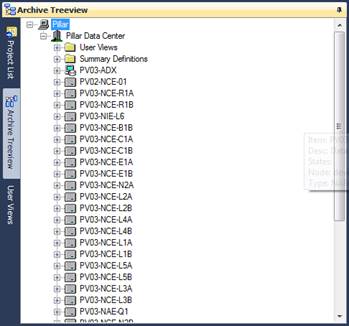
This tab shows a treeview representation of the SCT archive database after it is parsed with the MSEA Binder tool. (Note: this is NOT the SCT database, but a representation of it)
Right-click context menu options:
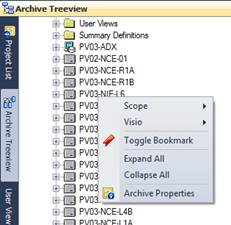
Visio - Sync with Visio object
If you have a bound Visio Advanced graphic object selected in Visio, you can right-click and select this option to find the point on the tree view.
Scope
If you right-click on a node, you can set or reset the project scope of that node and all child nodes below it at once. This is useful when you have a database where only a few controllers have graphics to be done on them. The other controllers should be removed from scope so that those objects don't show up in the reports.
Toggle Bookmark
You can create a bookmark of any node in the tree view. Just select the node, right-click, and select toggle bookmark. The node will be highlighted green if a bookmark is set. From the bookmark toolbar, you can move to the next and previous bookmarks.
New Graphic/Folder
If you have selected a server node, graphic or folder node, you can add a new graphic object to the tree view without adding it in SCT database. This is useful when you are verifying graphics that may refer to graphic objects and those objects haven't been defined in the SCT yet. Future versions will use this ability to create SCT export files directly.
Expand/Collapse All
These functions will expand or collapse the entire archive treeview. For large databases, the expand all function may take a long time.
Archive Properties
This option will show the archive database properties. Here you can see what SCT version was imported and the timestamp of that import. You can also add your own comments.