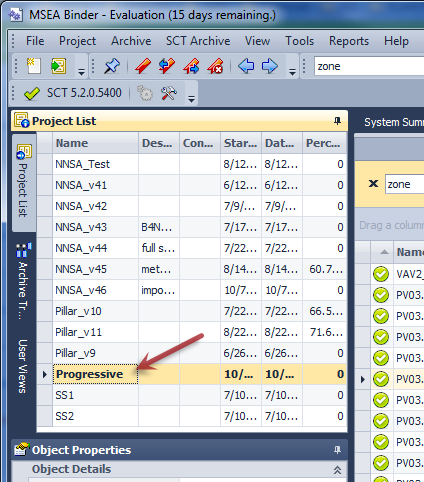
To import a SCT database, you must first select a project or create a new one. Select the appropriate project from the project list.
From the SCT or Project menu, select Import SCT Database or right-click to get the context menu.
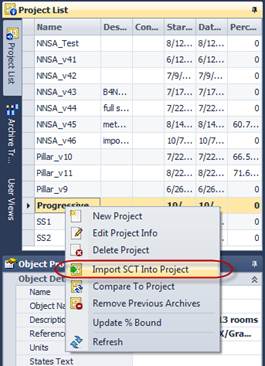
If the archive SCT database isn't shown in the list you will need to restore the SCT database first.
You’ll get the following message when you start the import process:

A database selection window will popup allowing you to select what SCT database you want to import. You can import from your local SQL databases or from another computer.
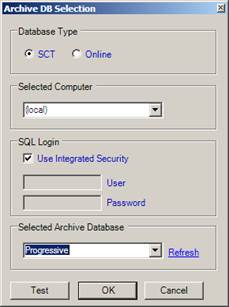
If there is already an archive database in the selected project, you will be prompted to append it to the project or delete the existing archives prior to importing.
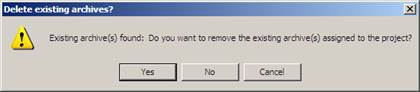
Answering YES will delete all archives that were already loaded into the project. Answering NO will import the information on top of existing imports on the same project. Keeping an existing import into a project allows you to do database comparisons on previous versions.
The merge process will start. This process can take several minutes depending on the number of points in the SCT database. You can hit the red X button to cancel the process.
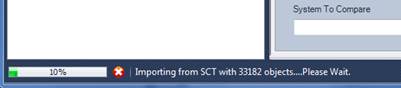
After the user views are imported, the import process will continue to gather additional point information like then name, description, units, etc.
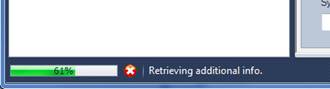
The next step will attempt to build a systems list of unique and template (same) systems.
The entire import SCT process may take a few seconds to several minutes depending on the size of the SCT archive database.